
Introduction
Relationships are the connective tissue of every Power BI semantic model. They decide how a slicer click on one table ripples through to the numbers on another and getting them wrong is one of the most common reasons a dashboard looks fine but quietly reports the wrong figures.
This guide breaks relationships down into the three decisions you make every time you connect two tables the Cardinality and Cross-Filter Direction are allowed to travel, and whether the relationship is active or held in reserve for a specific calculation.
What is a Relationship in Power BI?
A relationship is a link between a column in one table and a column in another, built on a shared key such as a Customer ID, Product ID, or Date. Once that link exists, Power BI can propagate filters a selection in a slicer built from one table automatically restricts the rows visible in a related table, without you writing a single line of DAX.
Every relationship you create involves three settings: Cardinality (the shape of the match between the two tables), Cross-filter direction (which way filters are allowed to flow), and whether the relationship is Active. Power BI Desktop tries to detect and set all three automatically when it loads related tables, but every setting can be reviewed and changed in Manage relationships.
Cardinality: One-to-Many, Many-to-One, One-to-One, Many-to-Many
Cardinality describes how rows on each side of a relationship are allowed to match up. Power BI supports four cardinality types:
| Cardinality Type | Typical Example |
| One-to-many (1:*) | One customer has many orders the most common pattern between a dimension and a fact table. |
| Many-to-one (*:1) | The same relationship viewed from the fact table's side many order rows point to one customer. |
| One-to-one (1:1) | One employee has exactly one employee profile record each side has at most one matching row. |
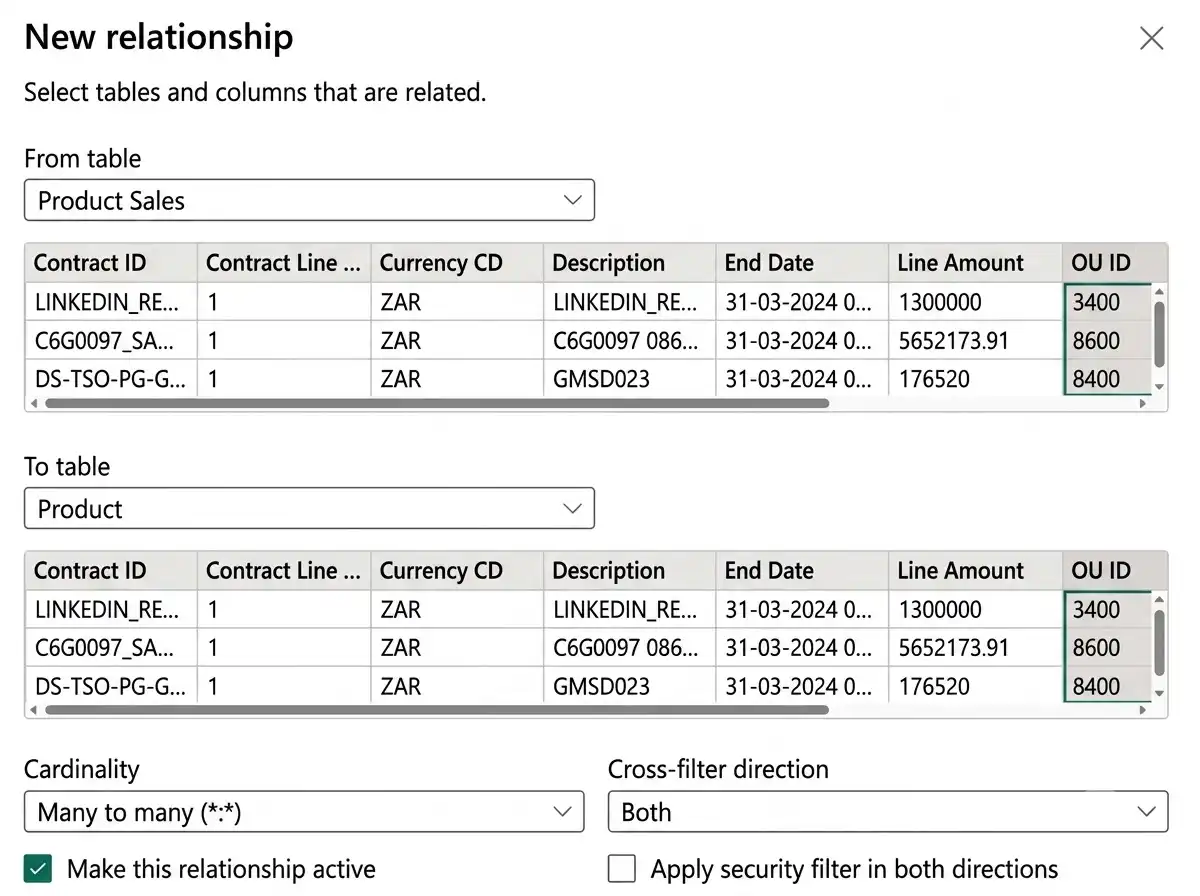
| Many-to-many (*:*) | A product can appear in many promotions, and a promotion can include many products. |
Choosing the correct cardinality isn't cosmetic it tells Power BI's engine how to validate and optimize every filter it propagates. A mismatched cardinality is a common root cause of totals that don't add up.
Cardinality Types Visualized
The four diagrams below show how rows match up on each side of a relationship for every cardinality type.
Figure 1 — One-to-One (1:1) relationship: Employee to Employee Profile in Power BI.
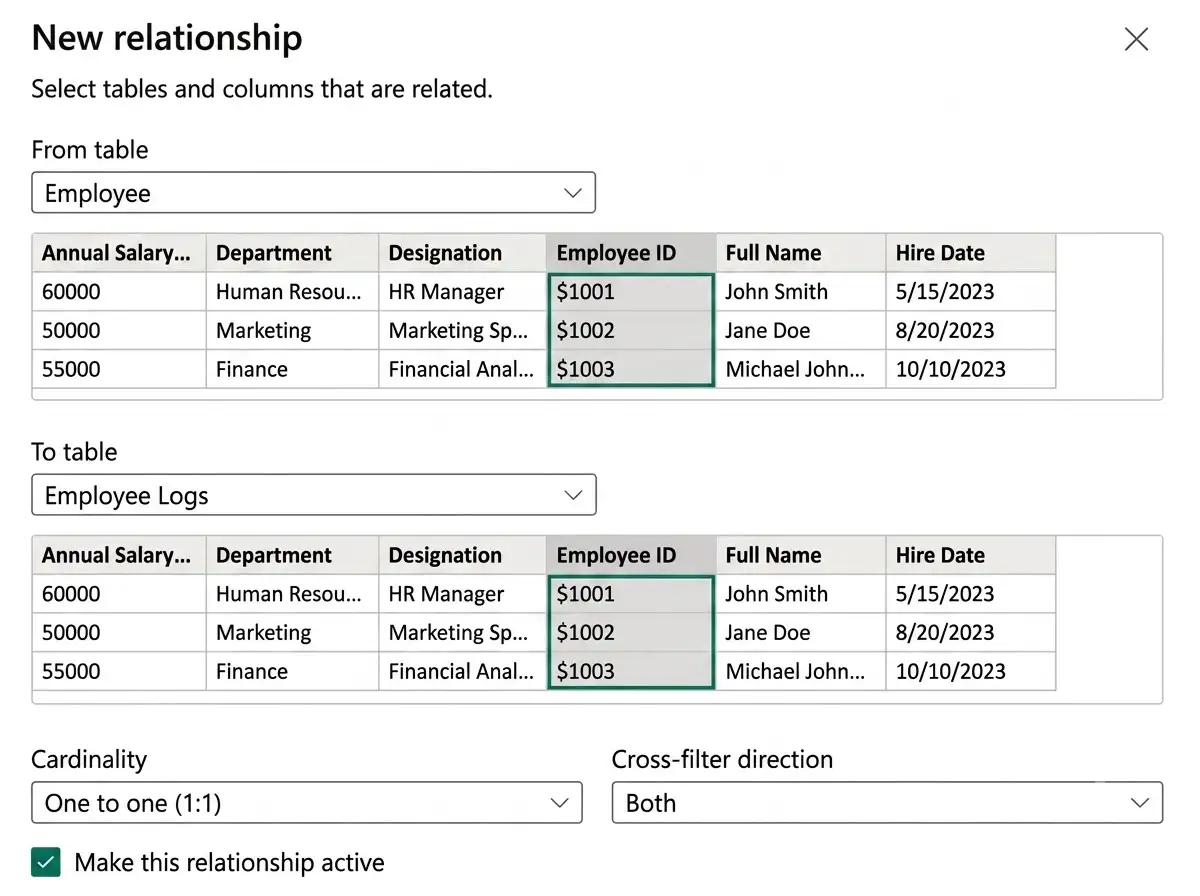
Figure 2 — One-to-Many (1:*) relationship: Customer to Order in Power BI.
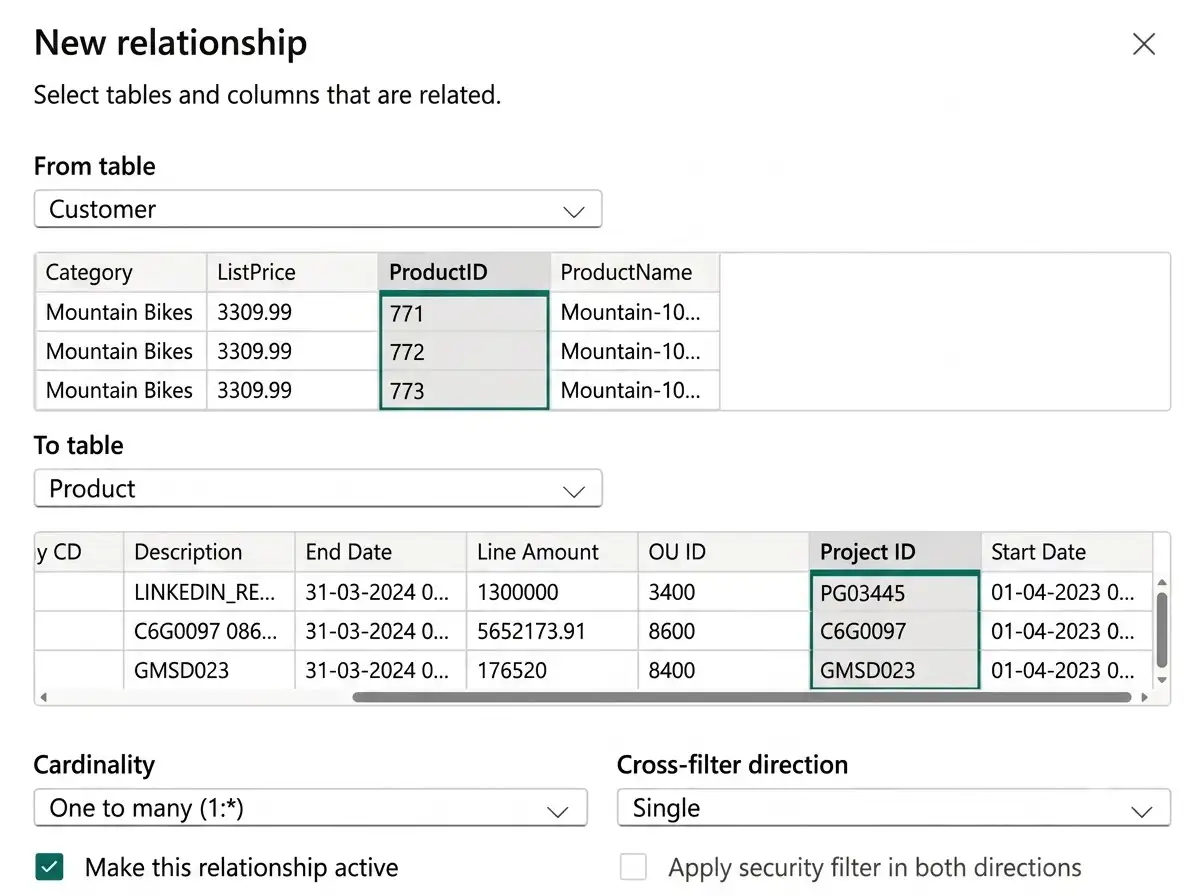
Figure 3 — Many-to-One (*:1) relationship: Order to Customer in Power BI.
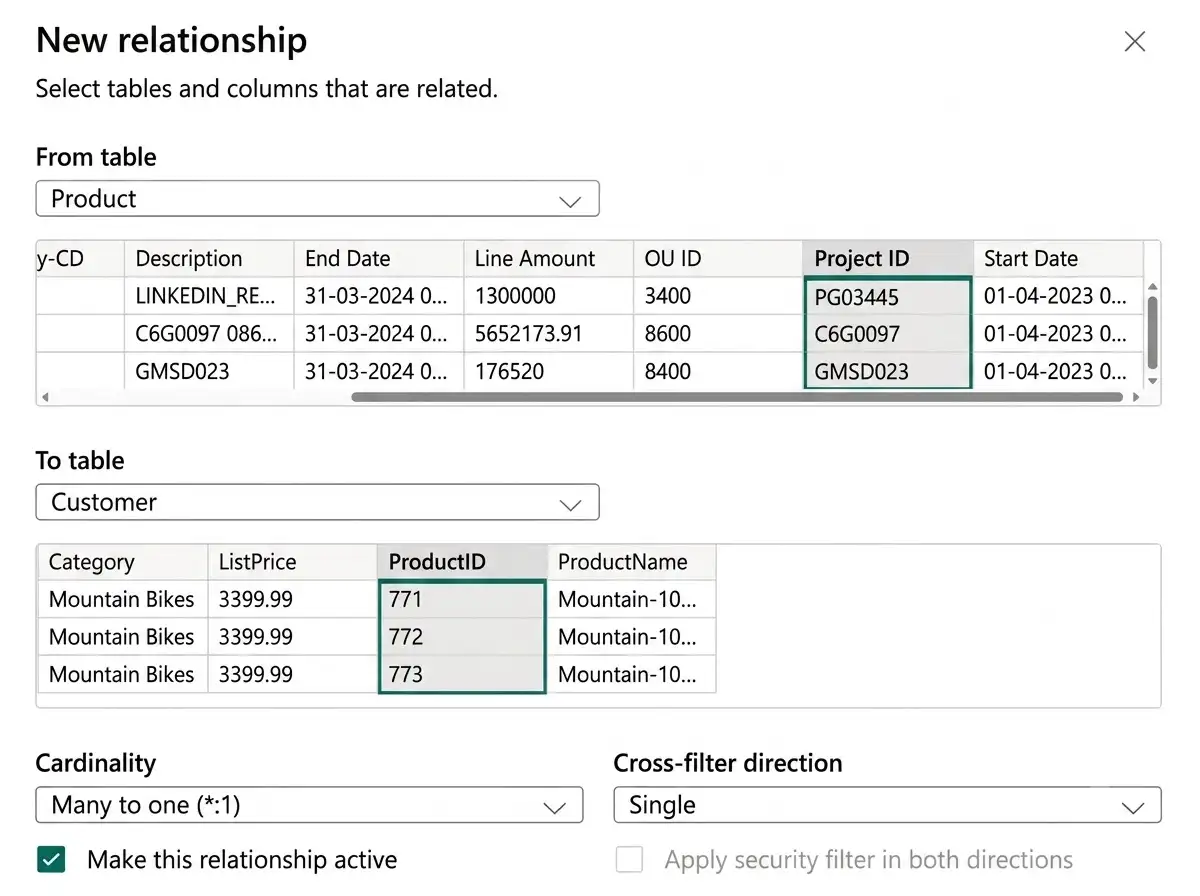
Figure 4 — Many-to-Many (*:*) relationship: Product to Promotion in Power BI.
Cross-Filter Direction: Single vs. Bidirectional
Cross-filter direction controls which way a filter is allowed to travel once a relationship exists. In the Model view, you can read a relationship's direction directly from the arrowheads on its connecting line.
| Single Direction | Bidirectional (Both) |
| Filters flow one way only typically from the dimension table to the fact table. | Filters flow both ways between the two tables. |
| The default and most efficient setup for star-schema models. | Useful when both tables genuinely need to filter each other, such as Region and Sales. |
| Recommended for most models because it is predictable and fast. | Increases the risk of ambiguous filter paths and circular dependencies if overused. |
| Rarely causes unexpected results. | Best reserved for specific, deliberate scenarios rather than used by default. |
A good rule of thumb: start every relationship as Single direction. Only switch to Both when a specific report visual genuinely needs the reverse filter and document why, since bidirectional relationships are the most common source of hard-to-diagnose ambiguity.
Active vs. Inactive Relationships
Power BI allows multiple relationships between the same tables, but only one relationship can be active at a time. If your data genuinely needs more than one path between the same pair of tables for example, an Orders table with separate OrderDate, ShipDate, and DeliveryDate columns that all relate to a single Date table only one of those relationships can be active at a time. The rest must be marked inactive in Manage relationships.
- Active relationships are used automatically by every visual, without any extra DAX.
- Inactive relationships stay in the model but are ignored by default they only take effect when a measure explicitly calls for them.
- This design exists because filter propagation must be deterministic: if two active paths connected the same two tables, Power BI would have no way to know which one to use.
This is exactly where the USERELATIONSHIP DAX function comes in it lets a specific measure temporarily activate an otherwise inactive relationship for the duration of that one calculation, without changing the model's default behaviour.

USERELATIONSHIP activates an inactive relationship for just one calculation commonly used for role-playing date tables and for resolving ambiguous filter paths. We'll cover writing these measures step by step in the next article in this series.
A Note on Filter Propagation Performance
Not all relationship types propagate filters at the same speed. Ordered from fastest to slowest, the general pattern is:
Rank | Relationship Pattern | Relative Speed |
| 1 | One-to-many | Fastest |
| 2 | Many-to-many link | Fast |
| 3 | Direct many-to-many cardinality | Moderate |
| 4 | Cross-source-group relationships | Slowest |
Best Practices for Modeling Relationships
- Prefer one-to-many relationships within a clean star schema over many-to-many wherever possible.
- Default every relationship to Single cross-filter direction; reserve Both for a proven, specific need.
- Keep only one active relationship per table pair, and use USERELATIONSHIP in measures for the rest.
- For role-playing dimensions (like a single Date table serving OrderDate, ShipDate, and DeliveryDate), consider whether duplicating the dimension or using inactive relationships fits your reporting needs better.
- Review the Model view regularly the arrowheads and line styles on each relationship tell you its direction and active status at a glance.
Conclusion
Cardinality, cross-filter direction, and active status are three independent dials on every relationship in your model and understanding how they interact is what separates a report that merely renders from one that reports the right numbers. Default to one-to-many, single-direction, active relationships wherever your data allows, and reach for bidirectional filtering or USERELATIONSHIP only when a specific, well-understood need calls for it.
Frequently Asked Questions
What is the difference between cardinality and cross-filter direction?
Cardinality describes the shape of the match between two tables one-to-many, one-to-one, or many-to-many. Cross-filter direction describes which way filters are allowed to travel once that relationship exists. The two settings are independent: a one-to-many relationship can still be set to filter in a single direction or both directions.
Can two tables have more than one relationship in Power BI?
Yes. Power BI allows multiple relationship paths between the same two tables, but only one can be active at a time. The others must be set to inactive and can be activated on demand inside a measure using USERELATIONSHIP.
When should I use a bidirectional relationship?
Use Both only when a table genuinely needs to filter in the reverse direction for a specific reporting need, such as certain many-to-many bridge table designs. Applying it by default across a model significantly raises the risk of ambiguous filter paths.
What does USERELATIONSHIP actually do?
USERELATIONSHIP tells a single CALCULATE expression to use a specific inactive relationship for that calculation only, without changing which relationship is active by default in the model