Why 80% of performance problems start in Power Query, not DAX and how to fix them with reusable, flexible parameters.
Two layers, one report. But depending on where you push the work, you'll either get a report that refreshes in seconds, or one that grinds through millions of rows it never needed. This is, by a wide margin, the biggest performance mistake in Power BI so let's settle it for good.
What is Query Folding in Power BI?
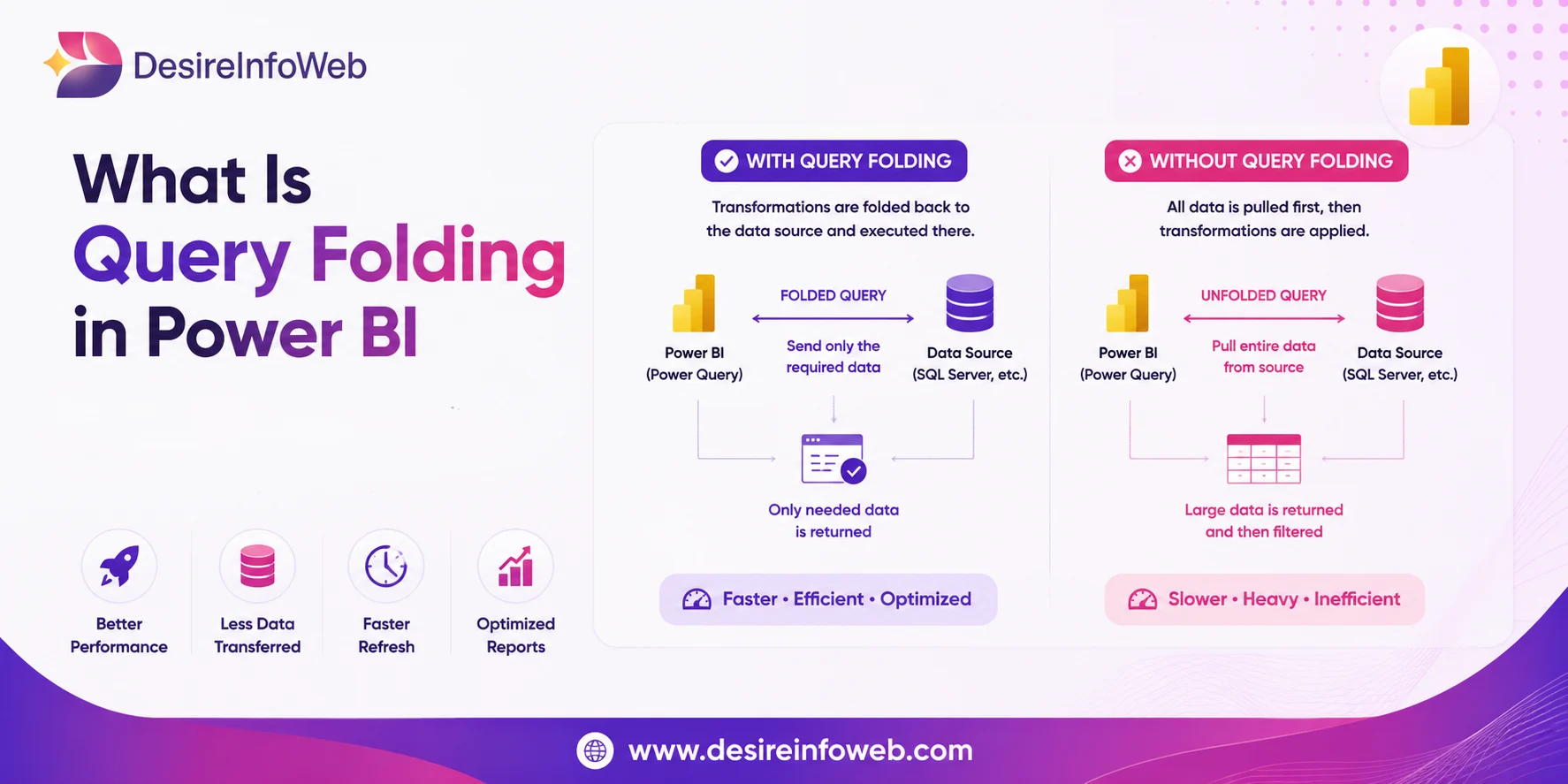
Query Folding is Power Query's built-in optimization engine that translates your M code transformations filters, sorts, merges, aggregations into a single native SQL query sent to the source database. Instead of pulling millions of rows into Power BI's memory and processing them locally, the heavy lifting happens on the source server.
| Without Folding - Slow Path Pulls ALL rows from source Filters in Power BI memory High RAM & CPU usage Refresh takes 30+ minutes | With Folding - Fast Path Sends SQL query to source Source filters & processes Minimal data transferred Refresh takes seconds |
Query Folding in Power BI is not a feature you turn on it's a behaviour that either happens or doesn't, depending on the transformations you apply. Your job is to preserve it.
Why Performance Problems Start in Power Query, Not DAX
When a Power BI report is slow, most developers immediately open DAX Studio and start optimizing measures. But here's the uncomfortable truth:
80%
DAX operates on data that's already loaded into the VertiPaq engine. If you've loaded 50 million rows when you only needed 500,000, no amount of DAX optimization will fix that. The damage is already done at the data-loading stage.
How Query Folding Works Inside
When you apply transformations in the Power Query Editor, each step generates M code. The Power Query engine analyzes the entire chain of steps and determines if it can translate them into a single SQL SELECT statement.
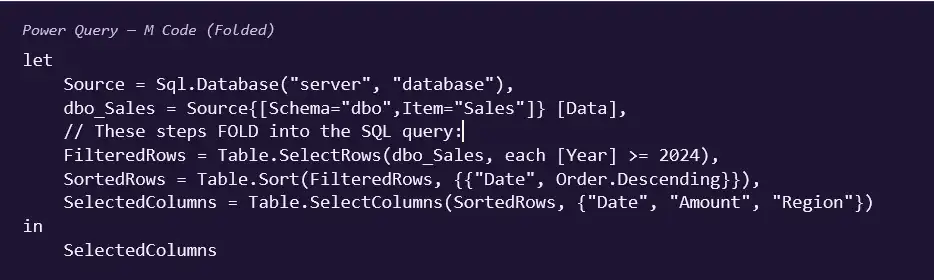

Three M steps collapsed into one SQL statement. The source database does the filtering, sorting, and column selection returning only the exact data you need. This is the power of Query Folding.
What Breaks Query Folding?
Not every Power Query Transformation can be folded. When you use an unsupported operation, the folding chain breaks at that point. Everything before it may still fold, but everything after runs locally in Power BI memory.
Common Folding Breakers
| Breaker | Why It Breaks Folding |
| Table.Buffer() | Forces all data into memory. Kills folding immediately. Common mistake when trying to "optimize." |
| Custom M Functions | Any function you write in M that the engine can't translate to SQL breaks the chain. |
| Cross-Source Merges | Merging data from SQL Server + Excel + Web? Folding stops at the merge step. |
| Pivot / Unpivot (some cases) | Dynamic pivoting or unpivoting with non-standard columns often breaks folding. |
| Complex Custom Columns | If/then/else with nested logic, or text manipulation the SQL translator can't handle. |
| Some Data Type Changes | Changing types after certain transformations can break the chain. Do type changes early. |
Safe Operations (Always Fold)
- Table.SelectRows
- Table.Sort
- Table.SelectColumns
- Table.RenameColumns
- Table.RemoveColumns
- Table.Join
- Table.Group
- Table.AddColumn
Folding breaks at the first unsupported step. Reorder your steps so all foldable transformations happen before any non-foldable ones. This maximizes the amount of work pushed to the source.
How to Verify Query Folding
There's no single "folding indicator" light in Power BI, but you have three reliable methods:
Query Dependencies Dialog
Right-click any query in the Power Query Editor → Query Dependencies. If your query appears with a checkmark and shows connections to source queries, folding is active. If the icon is grayed out or the query is isolated, folding has broken.
Performance Analyzer (Power BI Desktop)
Go to View → Performance Analyzer → Start Recording, then refresh your query. Click "Copy Query" to see the actual SQL sent to the source. If you see a proper SELECT statement with your filters, folding is working. If you see a bare SELECT * FROM table with no WHERE clause, folding broke.
SQL Server Profiler / Extended Events
For SQL Server sources, run a trace while refreshing. You'll see exactly what SQL is being executed. This is the most definitive method no guessing involved.
Introducing Parameters for Reusable Queries
Power BI Parameters are named values you create once and reference across multiple queries. They're the bridge between flexibility and performance letting you build queries that adapt without breaking folding.
Types of Parameters
| Type | Typical Use |
| Text | Server names, paths, file names |
| Number | Thresholds, top N values, dates |
| Any | Dropdown lists, dynamic values |
Creating a Parameter
Path: Home → Manage Parameters → New Parameter
| Field | Example Value |
| Name | CutoffDate |
| Type | Date |
| Current Value | 1/1/2024 |
| Suggested Values | List of Values |
Using a Parameter in Your Query
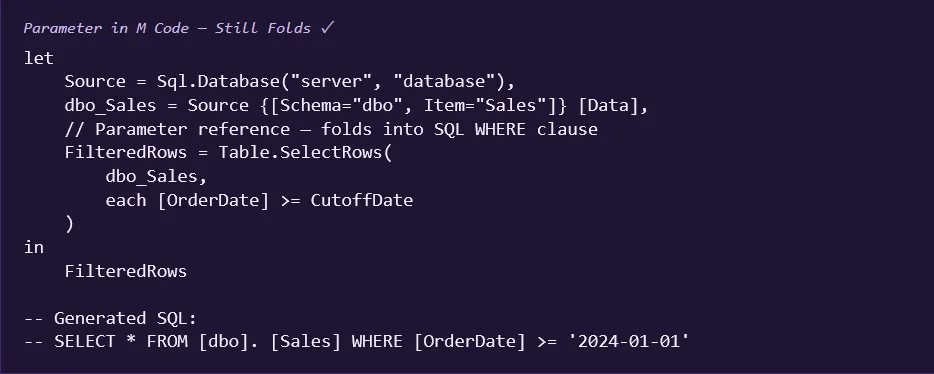
Simple parameter references in filters preserve Query Folding. The parameter value gets injected into the generated SQL. This means you get flexibility WITHOUT sacrificing performance.
Real-World Use Cases for Parameters
Environment Switching (Dev → Staging → Prod)
Create parameters for ServerName and DatabaseName. Reference them in your connection. Switch environments by changing two parameter values instead of editing 20+ queries.

Incremental Refresh Date Threshold
Use a parameter as the rollback threshold for incremental refresh. Combined with Query Folding, this ensures only new/changed data is pulled during each refresh cycle.
Dynamic Filtering at Refresh Time
Filter data for specific regions or departments before it even enters the model. This reduces model size and improves both refresh time and query performance all while preserving folding.
Dynamic File Paths
Store the base folder path as a parameter. When files move (e.g., SharePoint migration), update one parameter instead of every single file query.
Best Practices Checklist
Follow this checklist to ensure your Power Query layer is optimized for maximum Query Folding and parameter flexibility:
- Filter early, filter at the source — Move your Table.SelectRows as close to the Source step as possible. Never filter after a non-foldable step.
- Remove unnecessary columns before merging — Use Table.SelectColumns before joins to reduce the data footprint and preserve folding.
- Never use Table.Buffer() "just in case" — It guarantees folding breaks. Only use it when you've verified it solves a specific performance problem and the trade-off is worth it.
- Change data types immediately after Source — Type changes fold with most databases, but only if done before non-foldable steps intervene.
- Use parameters instead of hardcoded values — Server names, paths, filter thresholds — if it might change, make it a parameter. Future-you will be grateful.
- Verify folding after every major change — Use Query Dependencies or Performance Analyzer after adding new steps. Don't assume folding survived.
- Use View Native Query as a last resort — Right-click a query → "View Native Query" shows the generated SQL. If grayed out, folding is broken.
Frequently Asked Questions
Q1. What is Query Folding in Power BI?
Query Folding is Power Query's ability to translate your M code transformations into native SQL queries that run on the source database server. Instead of pulling all data into Power BI memory and then filtering, folding pushes the work to where the data lives — dramatically improving performance.
Q2. How do I know if Query Folding is working?
Right-click on your query in Power Query Editor and select "Query Dependencies". If your query has a checkmark and appears in the dependency diagram with downstream connections, folding is active. Alternatively, use SQL Server Profiler or Performance Analyzer to see the generated SQL statement.
Q3. What breaks Query Folding?
Common operations that break folding include: custom M functions, pivoting/unpivoting with non-standard columns, adding custom columns with complex logic, merging queries from different sources, using Table.Buffer(), and certain data type changes.
Q4. Are Power BI Parameters the same as DAX parameters?
No. Power BI Parameters are defined in Power Query and control data-loading behaviour (like server names, file paths, filter values at refresh time). DAX parameters are runtime filters used in measures and calculations. Parameters work before data enters the model; DAX works after.
Q5. Can I use Parameters to switch between Dev and Prod environments?
Yes, this is one of the most powerful use cases. Create a parameter for the Server Name or Database Name, then reference it in your connection string. You can swap environments by simply changing the parameter value no need to edit each query manually.
Q6. Does using parameters affect Query Folding?
Simple parameter references in filters preserve Query Folding. The parameter value gets injected into the generated SQL as a literal value. However, if you use parameters in complex custom M functions or unsupported operations, folding can still break.