Introduction
Formatting one visual at a time doesn't scale past a handful of pages. A theme lets you set colours, fonts, and visual styles once, at the report level, so every new chart, card, and slicer picks up the same look automatically.
Themes have also become a moving target. Power BI's base theme changed in 2026 new reports now start on modern visual defaults instead of the older classic look, and a custom theme built years ago can suddenly look out of step with what a freshly created report looks like out of the box.
This guide covers both halves of that story: how to build and manage a Power BI Themes the right way, and what to do when an older theme collides with Power BI's modern default visuals.
What Is a Power BI Theme?
A theme is a JSON file that defines the colours, fonts, and default visual styling applied across an entire report. Once a theme is applied, every visual picks up its colours and formatting from that theme unless you've manually overridden a specific visual in the formatting pane.
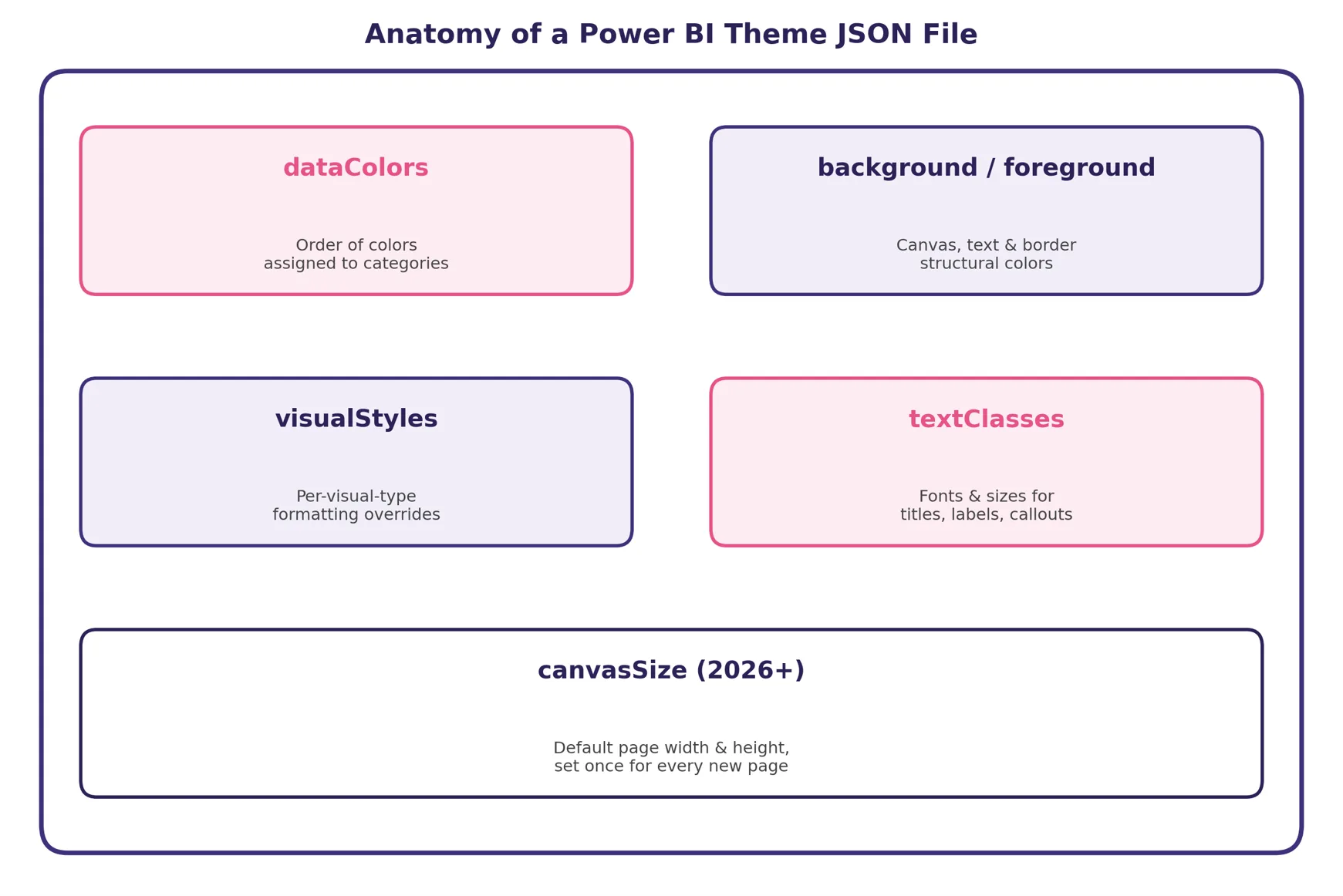
A theme controls three broad things: the data colours assigned to categories and series, the structural colours used for backgrounds, text, and borders, and the visual style presets padding, typography, and layout defaults that shape how each visual type looks before you touch a single setting.
Why It Matters
- A consistent theme is what makes a 40-page report look like one product instead of forty separate experiments.
- Changing a brand color later means editing one theme file, not hunting through every page and every visual.
- When formatting is manually applied to a visual, the theme won't override it until that visual is reset to default which is exactly why theme-first design saves time later.
Building a Custom Theme: The JSON Basics
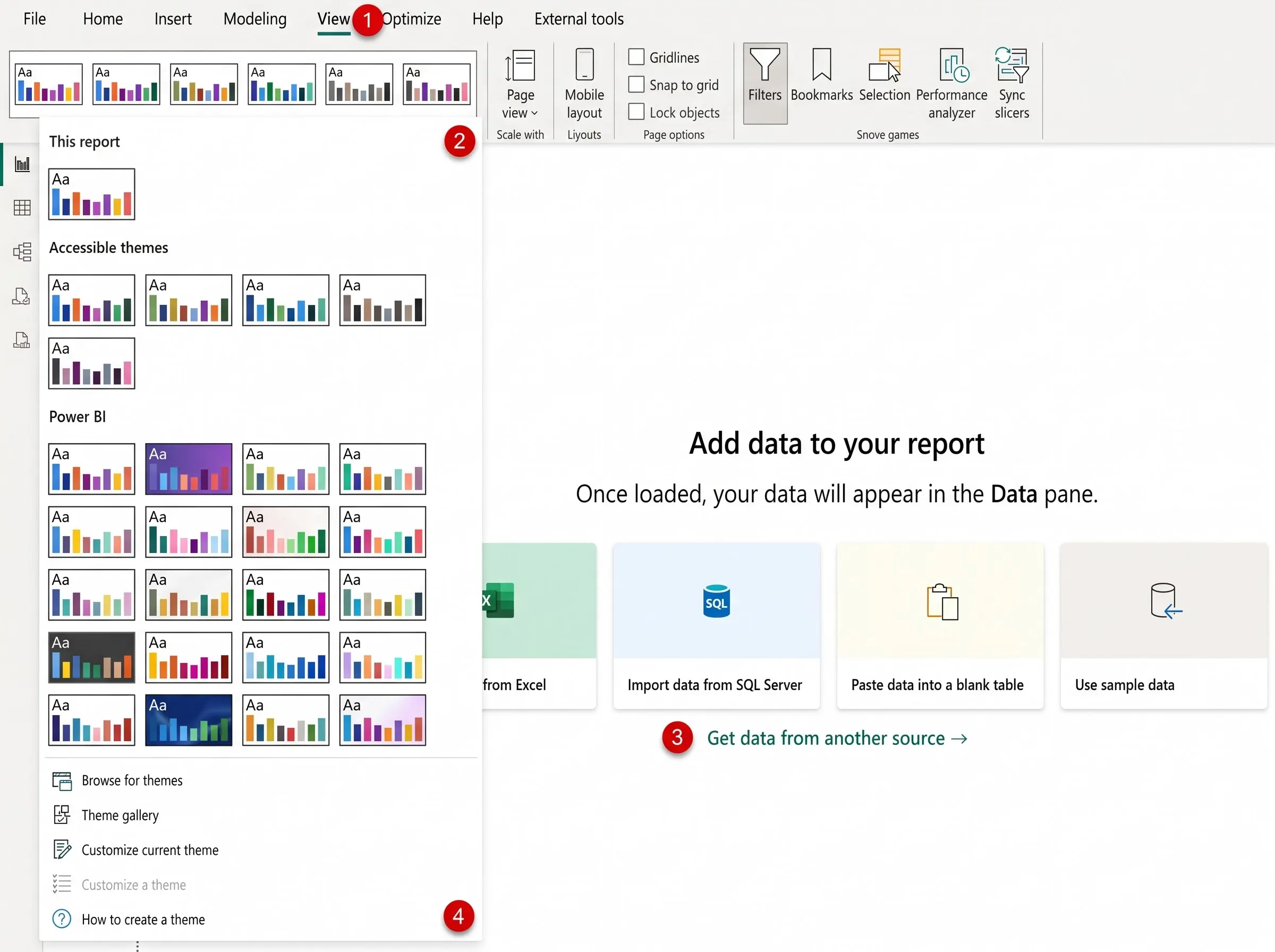
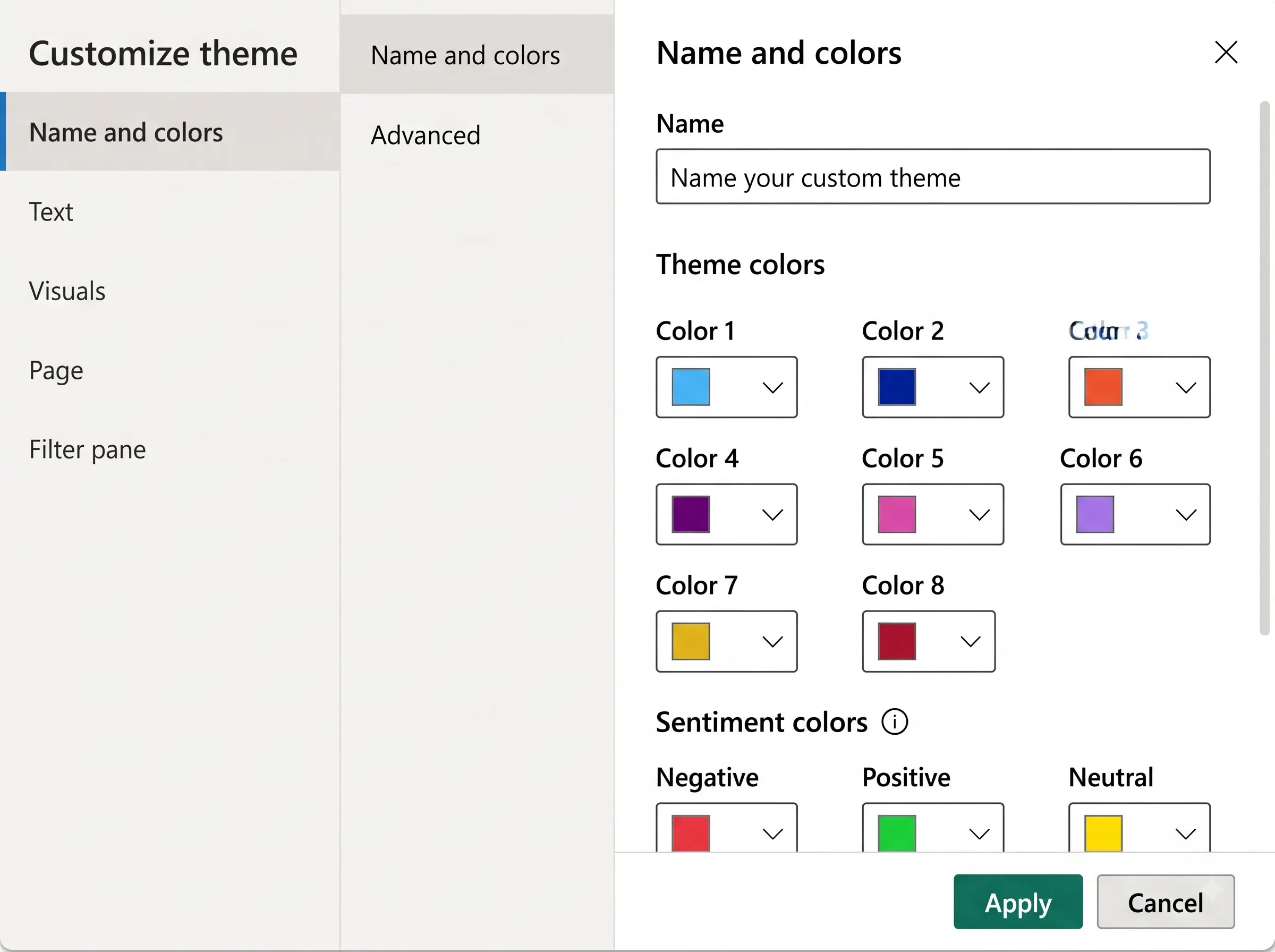
Custom themes are plain JSON files, applied from View > Themes > Browse for themes, or built directly inside Power BI Desktop through Customize current theme.
Property | What It Controls | Example |
dataColours | The ordered palette assigned to categories, series, and data points | ["#E75289", "#3F317C", "#FFC857"] |
background / foreground | Canvas background color and default text color | "background": "#FFFFFF" |
tableAccent | Accent color used for table and matrix headers/borders | "tableAccent": "#E75289" |
visualStyles | Per-visual-type overrides — card padding, chart gridlines, and more | "visualStyles": { "card": {...} } |
textClasses | Font family and size for titles, labels, and callouts | "textClasses": { "title": {...} } |
canvasSize (2026+) | Default page width and height applied to every new page | "canvasSize": { "width": 1280 } |
Quick Insight
- Don't start a theme file from a blank page. Export your report's current theme first (Customize current theme > Export), then edit the JSON — it already has every property Power BI expects, in the right shape.
- Keep a copy of your theme JSON in version control alongside the .pbix file, so a color change is reviewable like any other code change.
The Shift to Power BI's Modern Default Theme
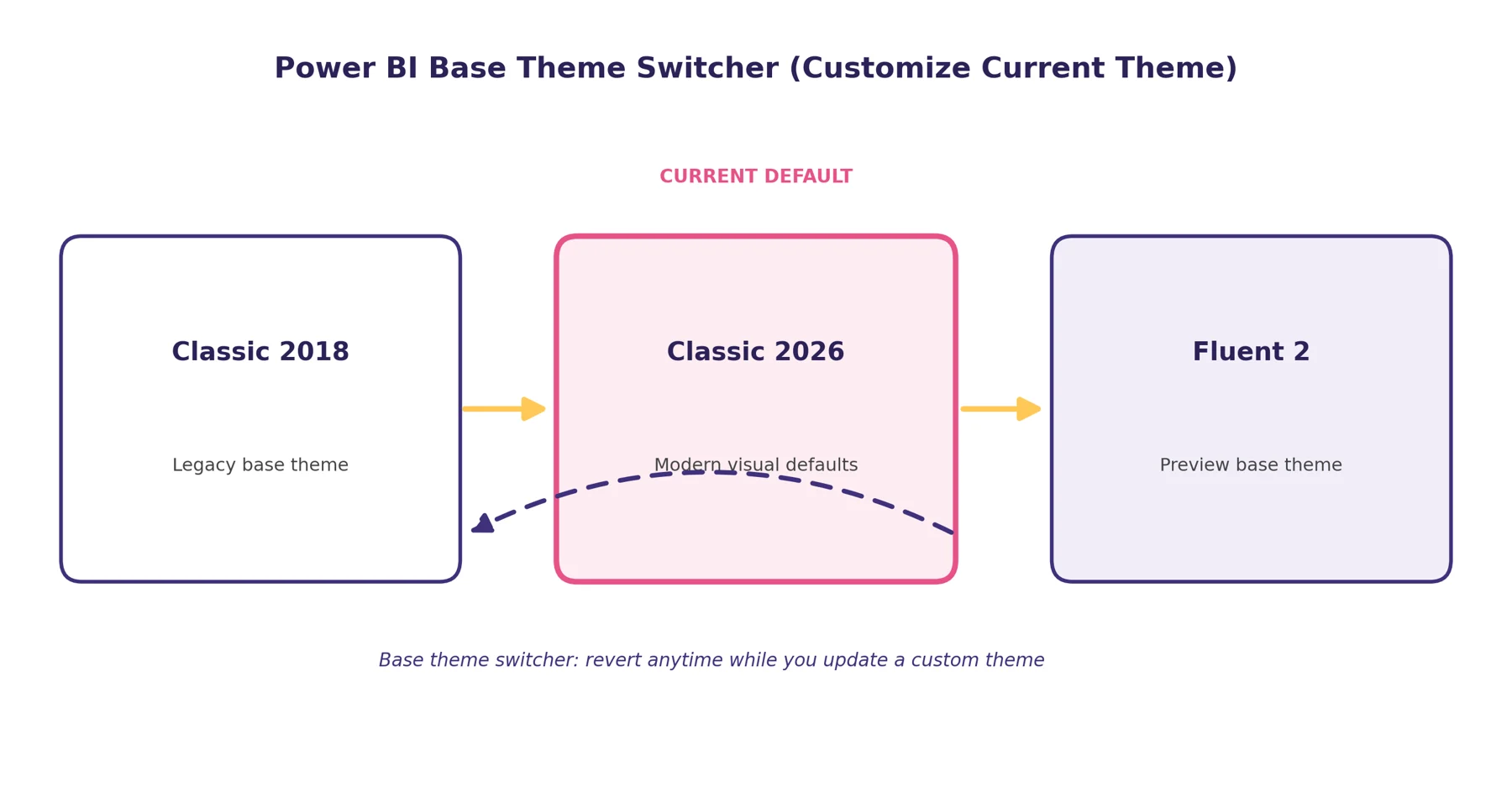
As of the 2026 updates, Power BI Desktop offers three base themes: Classic 2018, the long-standing legacy look; Classic 2026, the current default applied to every new report; and Fluent 2, a newer preview base theme aligned with Microsoft's broader Fluent design language.
Classic 2026 changes more than colours. Buttons and navigators pick up Fluent-style states for default, hover, and pressed; slicers default to dropdown mode instead of a list; table and matrix visuals gain banded rows and corrected axis colours by default; and cards use tighter padding for a cleaner look — all without touching the formatting pane.
Aspect | Classic 2018 | Classic 2026 (Modern Default) |
Default for new reports | No legacy option only | Yes applied automatically |
Slicers | List style by default | Dropdown mode by default |
Buttons / navigators | Manual styling required | Fluent-style states out of the box |
Table / matrix rows | Manual banding setup | Banded rows enabled by default |
Card visual | Standard padding | Reduced padding, cleaner look |
Canvas size in theme JSON | Not supported | Supported (canvasSize property) |
Fixing a Custom Theme That Doesn't Match the Modern Default
If a custom theme built for Classic 2018 suddenly looks broken mismatched table banding, off axis colours, or spacing that doesn't match the rest of a newer report — the fix doesn't require rebuilding the theme from scratch.
- Open View > Themes > Customize current theme and use the Base theme dropdown to see the options: Fluent 2 (preview), Classic 2026, or Classic 2018.
- If your custom theme doesn't yet work with the modern defaults, switch the base theme back to Classic 2018 to restore the previous look while you update the theme file.
- Update the theme's structural color properties gradually, checking table, matrix, and axis colours these were specifically corrected in the 2026 updates and are the most common source of mismatches.
- Use Update theme in Customize current theme, or Reset to default from the Themes gallery, to bring an older report's styling up to the latest base theme once your theme file is ready.
- Remember that manually formatted visuals aren't touched by a theme change until you reset that specific visual to default, so a base theme switch won't silently overwrite deliberate per-visual formatting.
Best Practices for Theme Management
- Default every new report to Classic 2026 unless you have a specific reason to stay on Classic 2018 or preview Fluent 2.
- Build custom themes by exporting and editing an existing theme JSON rather than writing one from a blank file.
- Store theme JSON files in source control and treat brand color changes as reviewable edits, not one-off tweaks in the UI.
- After any Power BI Desktop update, open reports on a custom theme and check table banding, axis colours, and slicer mode before publishing.
- Use the base theme switcher to revert temporarily instead of abandoning a custom theme the moment it looks off after an update.
Frequently Asked Questions
What's the difference between a base theme and a custom theme?
A base theme (Classic 2018, Classic 2026, or Fluent 2) sets the foundational visual defaults padding, typography, slicer mode, and more. A custom theme sits on top of a base theme and overrides specific colours and styles with your own JSON file.
Will switching to Classic 2026 break my existing report?
It can change the look of unformatted visuals spacing, slicer mode, and table banding are the most noticeable shifts. Manually formatted visuals aren't affected until they're individually reset to default, and the base theme switcher lets you revert instantly if the change doesn't suit a specific report.
What is Fluent 2 in Power BI?
Fluent 2 is a newer preview base theme aligned with Microsoft's broader Fluent 2 design language, offering an updated look for buttons, cards, and canvas styling beyond what Classic 2026 provides.
Can I set canvas size inside a theme file?
Yes as of the 2026 updates, a theme JSON can include a canvasSize property, so every new page created under that theme starts at the same default width and height automatically.
Conclusion
A theme is the fastest lever you have over how a Power BI report looks, and in 2026 it's also become a moving target worth watching. Build custom themes from an exported JSON rather than from scratch, keep them under version control, and when a report's look suddenly feels out of step, reach for the base theme switcher before you reach for a full rebuild.