
Overview and Prerequisites
Microsoft AppSource is the official marketplace for publishing Power Apps and Dynamics 365 solutions. This complete step-by-step guide explains how to deploy, package, certify, and publish Power Apps Enterprise Solution on Microsoft AppSource using managed solutions, Azure Blob Storage, and Microsoft Partner Center.
What You Need (Prepare These First)
| Requirement | Details |
| Business Email | Company domain email required |
| Registered Company | Legal business verification needed |
| Azure Subscription | Required for Blob Storage hosting |
| Privacy Policy URL | Mandatory live webpage |
| Support URL | Required support/contact page |
| App Logo | PNG 216×216 minimum |
| Screenshots | 1–5 HD images recommended |
Step 1: Create Partner Center Account
Microsoft Partner Center is the portal from which you publish your apps to AppSource. Everything is managed here listings, pricing, analytics, and certification.
- Open https://partner.microsoft.com/dashboard
- Click Enroll or Create Account
- Select "Marketplace Offers"
- Enter company information
- Complete tax profile
- Wait for Microsoft verification
Step 2: Convert Your Power App into a Solution
Standalone Power Apps cannot be published directly to Microsoft AppSource. The app must first be packaged inside a Managed Solution. A solution is a container that bundles your app, flows, tables, and settings together in one place.
- Open https://make.powerapps.com
- Go to Solutions
- Create New Solution
- Create Publisher
- Set version number
- Save solution
Step 3: Add the App and Its Dependencies to the Solution
Not just the app, but all of its dependencies must be added to the solution. If anything is missing, it will not work correctly in the customer's environment.
| Component | Status |
| Canvas/Model App | Mandatory |
| Dataverse Tables | If Used |
| Flows | If Used |
| Environment Variables | Recommended |
| Connection References | Mandatory |
Step 4: Export Managed Solution
| Feature | Unmanaged | Managed |
| AppSource Supported | No | Yes |
| Customer Editable | Yes | No |
| Proper Uninstall | No | Yes |
- Open Solution
- Click Export
- Select Managed
- Download ZIP package
Step 5: Prepare AppSource Assets
| Asset | Requirement |
| Logo | 216×216 PNG |
| Screenshots | HD Resolution |
| Short Description | 100 Characters |
| Long Description | 3000 Characters |
| Privacy Policy | Mandatory |
| Demo Video | Recommended |
Step 6: Upload Solution to Azure Storage
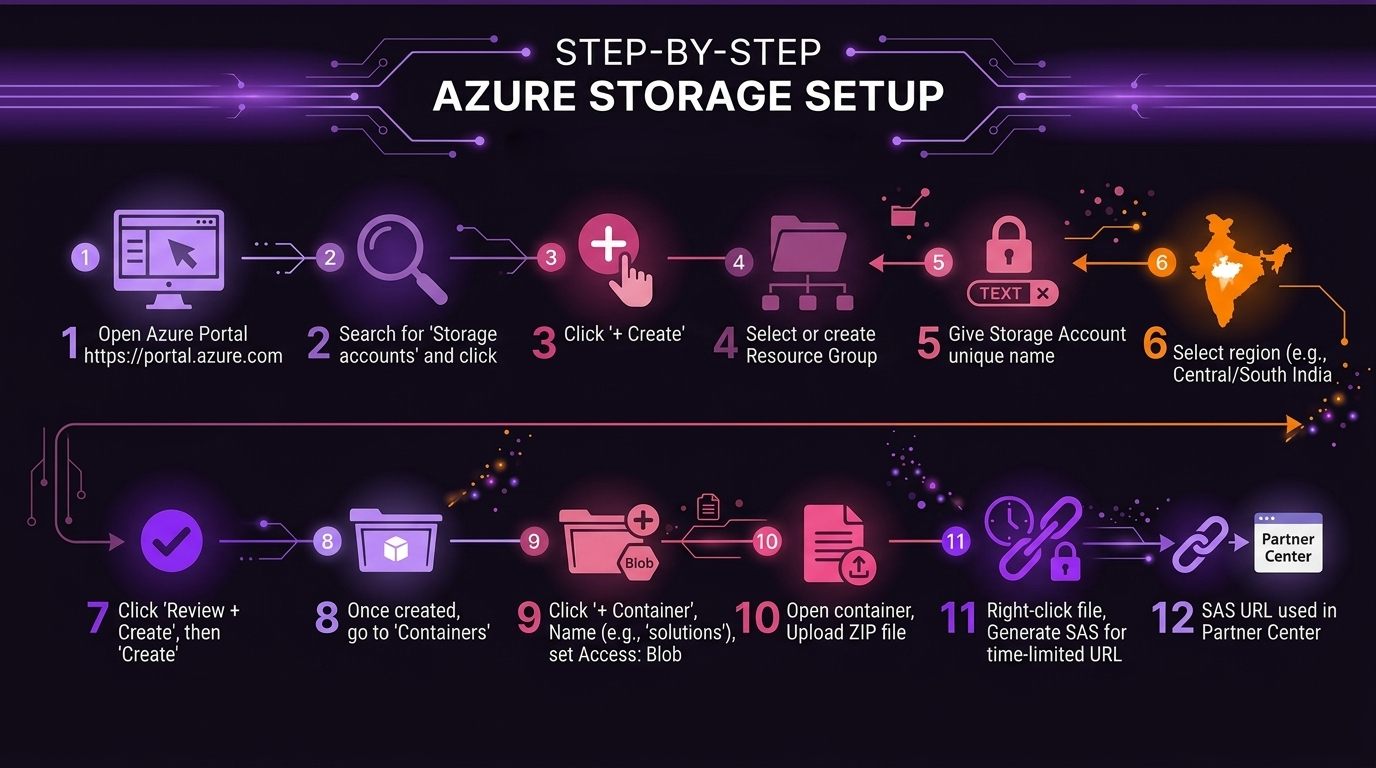
Upload Managed ZIP package to Azure Blob Storage and generate SAS URL.
- Create Azure Storage Account
- Create Blob Container
- Upload ZIP package
- Generate SAS URL
- Copy URL for Partner Center
Step 7: Create Marketplace Offer
| Offer Type | Status |
| Dynamics 365 and Power Apps | Correct |
| SaaS | Wrong |
| Azure Application | Wrong |
Step 8: Fill Listing Information
| Section | Purpose |
| Offer Setup | Basic configuration |
| Properties | Category and version |
| Offer Listing | Description and media |
| Technical Config | Package URL and licensing |
| Review + Publish | Final submission |
Step 9: Upload Solution Package
| Field | Details |
| Package URL | Azure SAS URL |
| Release Notes | Version updates |
| License Model | Per User / Site License |
Step 10: Common Validation Errors
| Error | Fix |
| Hardcoded Values | Use Environment Variables |
| Unmanaged Solution | Export Managed Solution |
| Missing Privacy Policy | Add Live URL |
| Invalid Logo | Use Correct Size |
Step 11: Certification Review
| Stage | Timeline |
| Automated Validation | 1–2 Days |
| Content Review | 3–7 Days |
| Technical Review | 5–10 Days |
| Final Approval | 1–2 Days |
Step 12: Publish and Go Live
- Verify AppSource listing
- Test installation in clean environment
- Check support links
- Track analytics
- Monitor reviews
- Prepare future updates
Best Practices
| Recommendation | Reason |
| Use Dataverse | Reliable and scalable |
| Use Environment Variables | Avoid hardcoding |
| Managed Solution | Required for AppSource |
Expected Timeline
Estimated total timeline: 4–6 weeks including Microsoft review and approval.
| Phase | Timeline |
| Partner Setup | Week 1 |
| Solution Development | Week 1–2 |
| Asset Preparation | Week 2 |
| Azure Upload | Week 2–3 |
| Microsoft Review | Week 3–5 |
| Go Live | Week 5–6 |
Important Links
- https://partner.microsoft.com/dashboard
- https://make.powerapps.com
- https://portal.azure.com
- https://appsource.microsoft.com